
Workspace walkthrough
Twelve screenshots in order — from the first click through downloading your PWA icon ZIP. More steps can be added later.
Static HTML version with the same images in the page source (for crawlers and tools that do not run JavaScript).
- 1
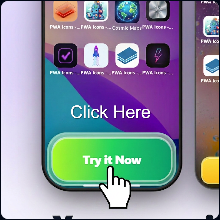
Get started
From the app home, open the workspace to begin creating icons.
- 2
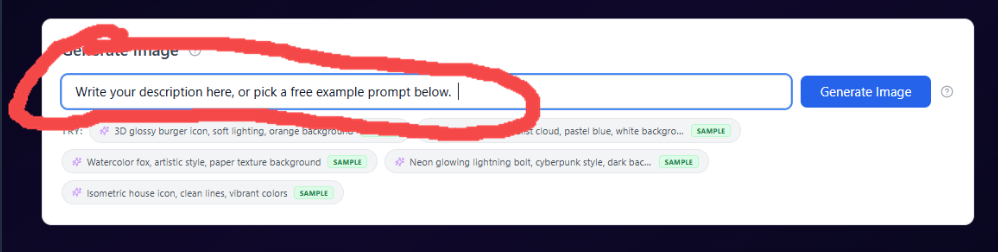
Describe your icon
Use the prompt field, or tap a free sample chip — then click Generate Image.
- 3
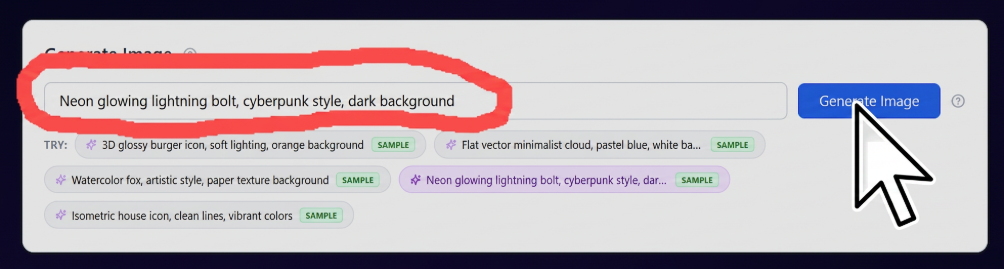
Refine your prompt
Type a full description or select a sample so the field shows exactly what will be generated.
- 4
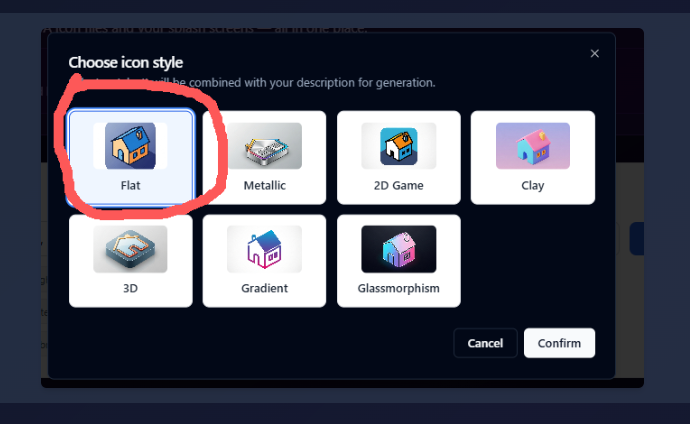
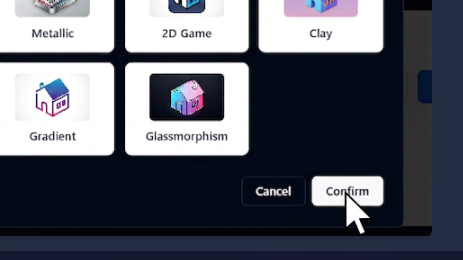
Choose icon style
Pick a preset (Flat, Metallic, Clay, Glassmorphism, etc.) — it is blended into your prompt.
- 5
Confirm style
Review your choice and confirm to start generation.
- 6
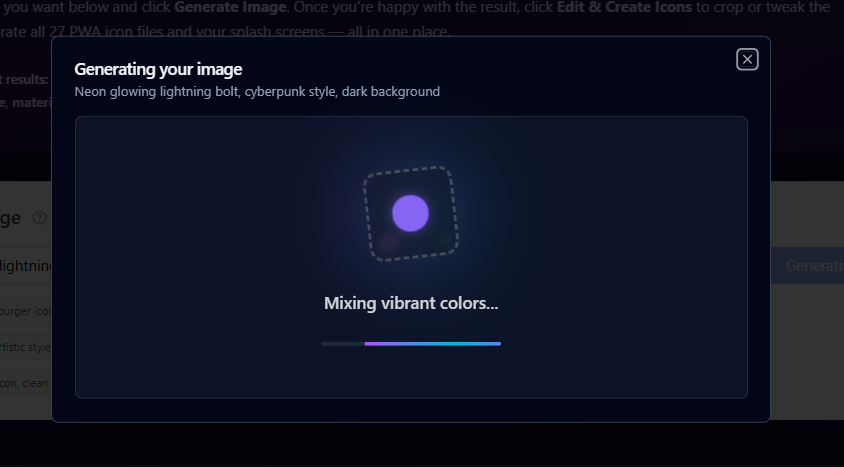
Wait while it generates
The modal shows progress while your image is created.
- 7
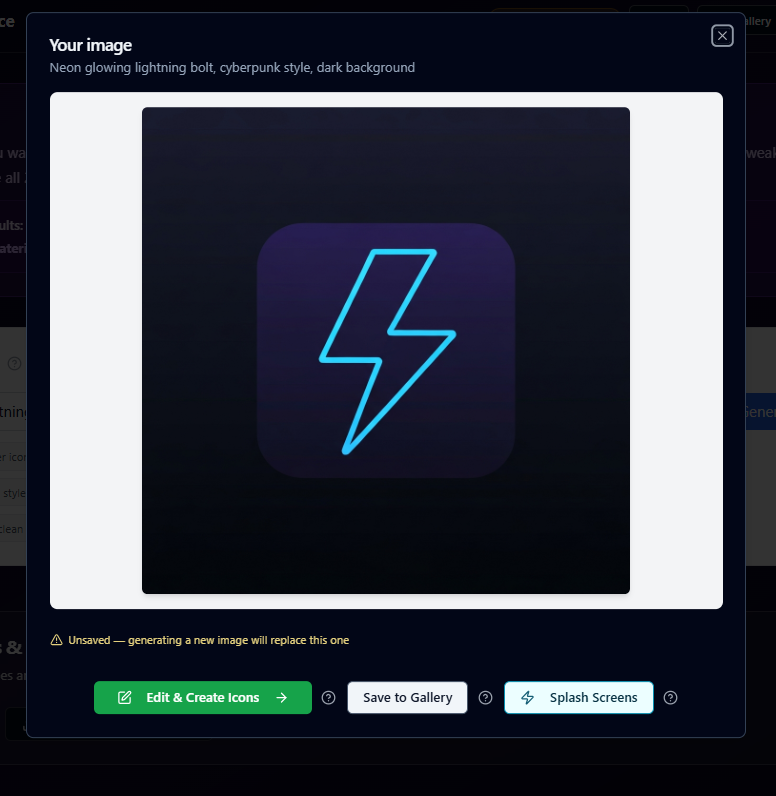
Review your image
When ready, your icon appears with options to edit, save, or open splash tools.
- 8
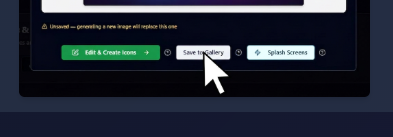
Save to gallery (optional)
Save so this image stays available — new generations replace an unsaved result.
- 9
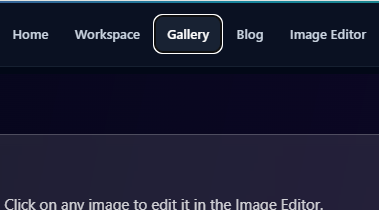
Open Gallery
Use the nav to Gallery to see saved images and jump to the Image Editor.
- 10
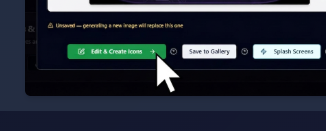
Edit or export next
Use Edit & Create Icons for PWA/iOS/Android sets, Save to Gallery, or Splash Screens.
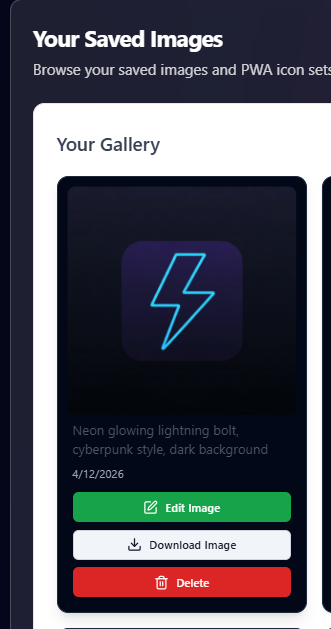
- 11
Manage saved images
In Your Gallery, edit, download, or delete any saved image.
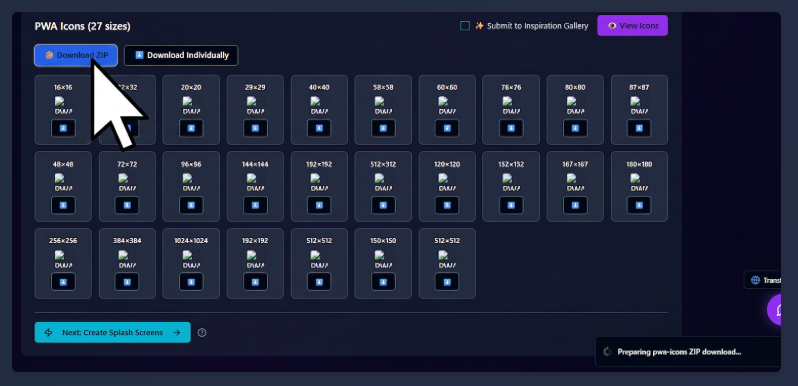
- 12
Download PWA icons
Generate all 30 sizes, then Download ZIP (manifest and icons included).
AI & API details
For REST endpoints, agent integration, and manifest conventions, use the AI Agent Guide.
Open workspace