-
1
Get started
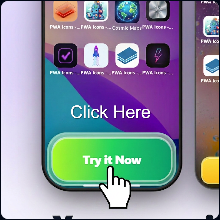
From the app home, open the workspace to begin creating icons.
-
2
Describe your icon
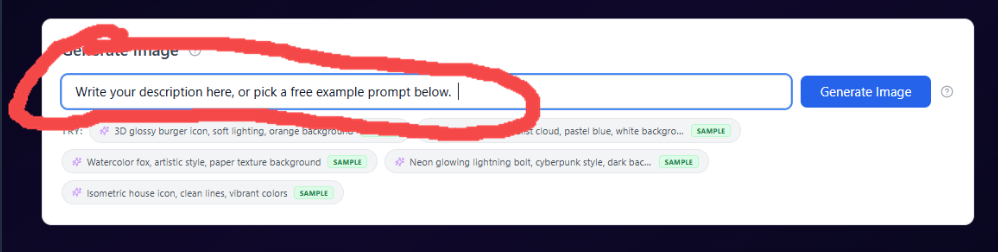
Use the prompt field, or tap a free sample chip — then click Generate Image.
-
3
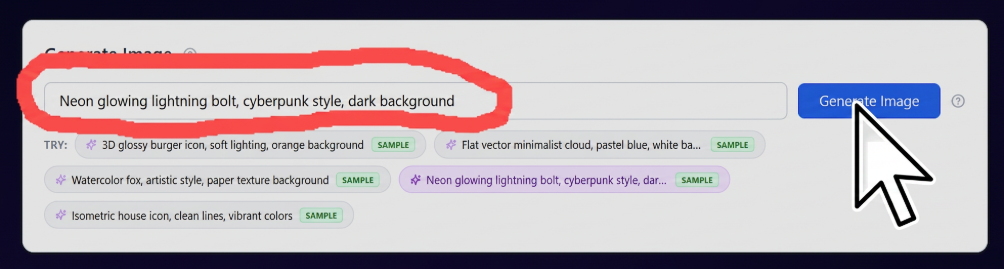
Refine your prompt
Type a full description or select a sample so the field shows exactly what will be generated.
-
4
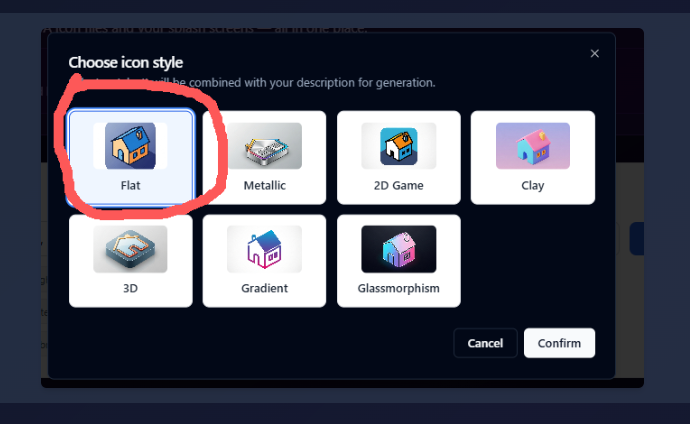
Choose icon style
Pick a preset (Flat, Metallic, Clay, Glassmorphism, etc.) — it is blended into your prompt.
-
5
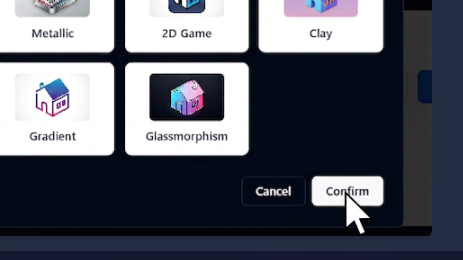
Confirm style
Review your choice and confirm to start generation.
-
6
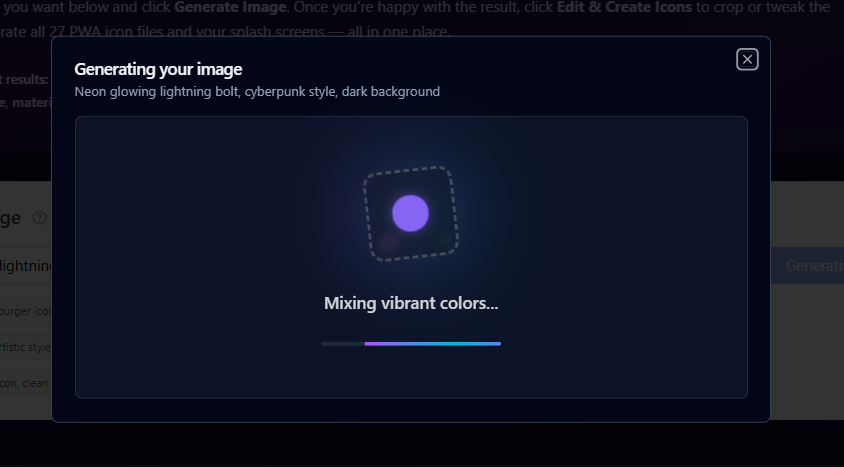
Wait while it generates
The modal shows progress while your image is created.
-
7
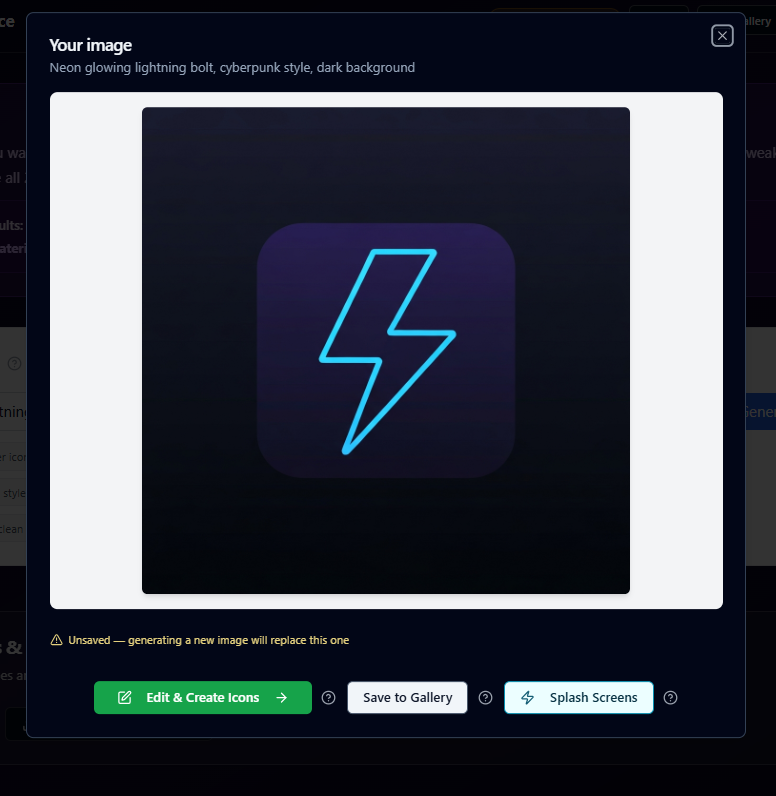
Review your image
When ready, your icon appears with options to edit, save, or open splash tools.
-
8
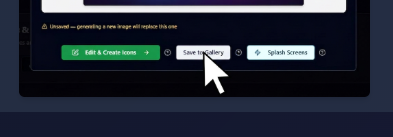
Save to gallery (optional)
Save so this image stays available — new generations replace an unsaved result.
-
9
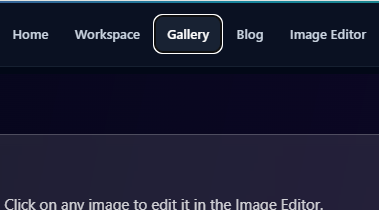
Open Gallery
Use the nav to Gallery to see saved images and jump to the Image Editor.
-
10
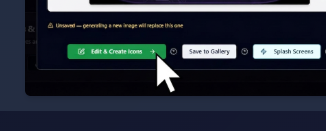
Edit or export next
Use Edit & Create Icons for PWA/iOS/Android sets, Save to Gallery, or Splash Screens.
-
11
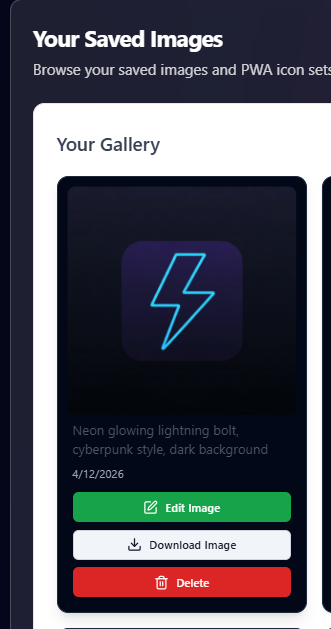
Manage saved images
In Your Gallery, edit, download, or delete any saved image.
-
12
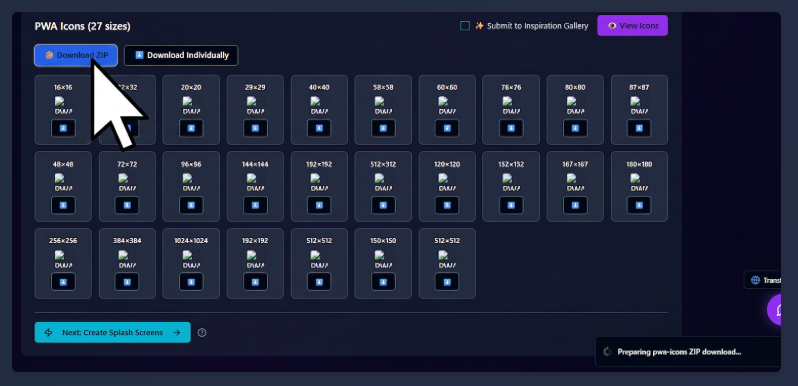
Download PWA icons
Generate all 27 sizes, then Download ZIP (manifest and icons included).